Studio
Design your pages once. Studio shows the real PDF while you click, then every export uses your choices.
npx -y markdown-pdf-export studio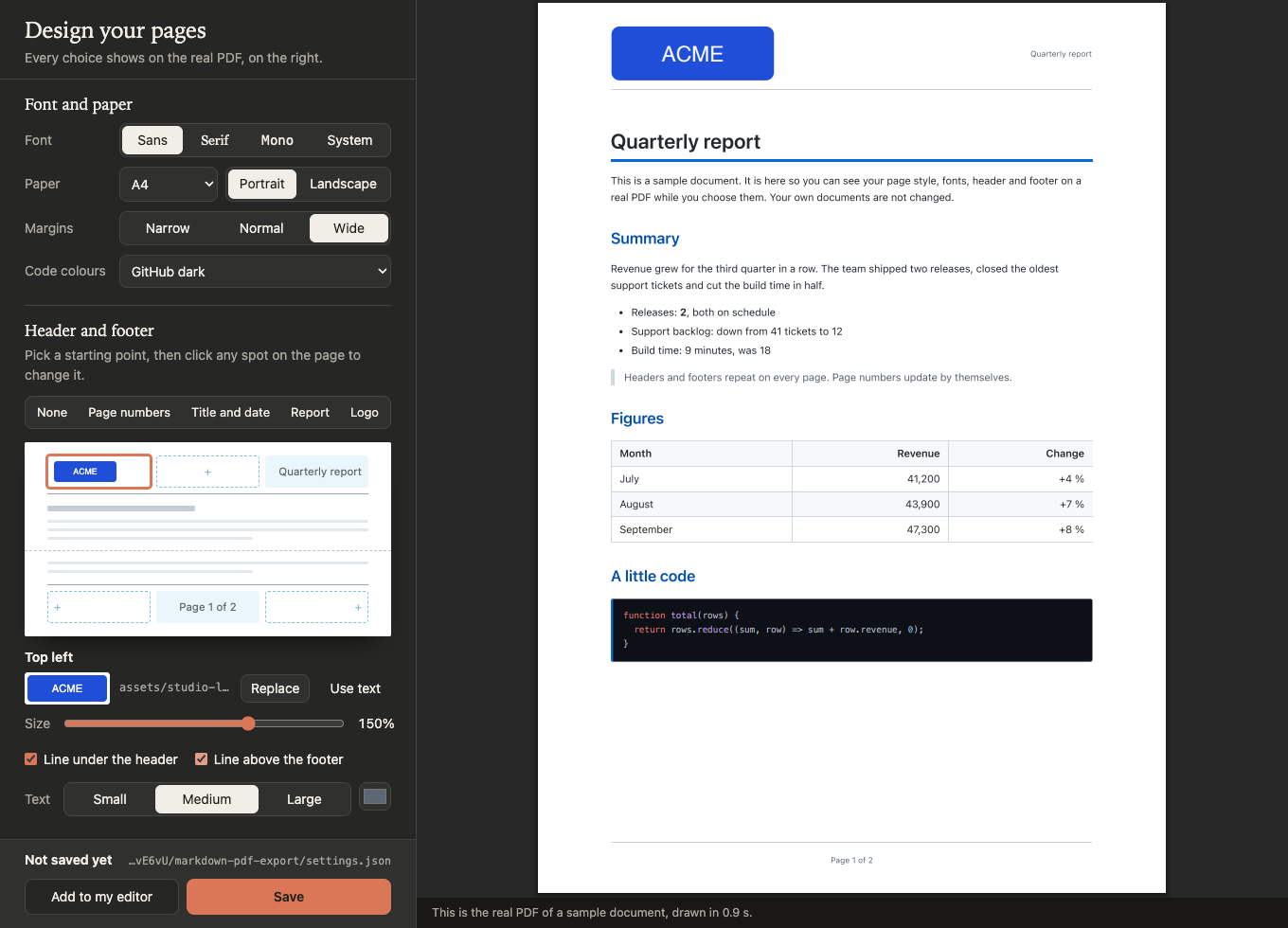
What you choose
Page style. Clean, Report, Academic, Compact or Technical. Each one sets the look of titles, text, tables and code.
Fonts and paper. A font for the text and one for the titles, the paper size, portrait or landscape, the margins and the colours of code blocks. With the Report or Technical page style, Theme colour (folded under the title font) changes the colour of the title rule, the section titles and the bars beside code and quotes.
Header and footer. Pick a starting point, then click any of the six spots on the small page to change it. Type text, or press Title, Page 1 of 9, Date or Author to insert it. To add a logo, drop an image on a spot, then set its size with the slider.
Save. That's it. Exports from your editor, your AI assistant and the terminal now look like this.
Add it to your editor
Press Add to my editor. Studio finds VS Code, Zed, Cursor and Claude on your computer and adds the export command for you, or shows what to paste. More in Your editor.
Good to know
- Your choices are saved in one settings file. The previous version is kept as a backup next to it.
- Logos are copied next to the settings file. A logo you replace or remove is deleted when you save.
- One layout for one project only: start Studio from the project folder with
--project. - Preview your own document instead of the sample: add
--file report.md. - Studio runs only on your computer and closes by itself a few minutes after you close the page. Nothing is uploaded.
What Studio does not do
Three spots at the top and three at the bottom, each with text or a logo. It is not a free page designer: no dragging, no web fonts, one text size and colour for header and footer. If you need more, the settings file can do it, and Studio keeps what you write there by hand.